Terminals
Intro and resources for using command lines and terminals.
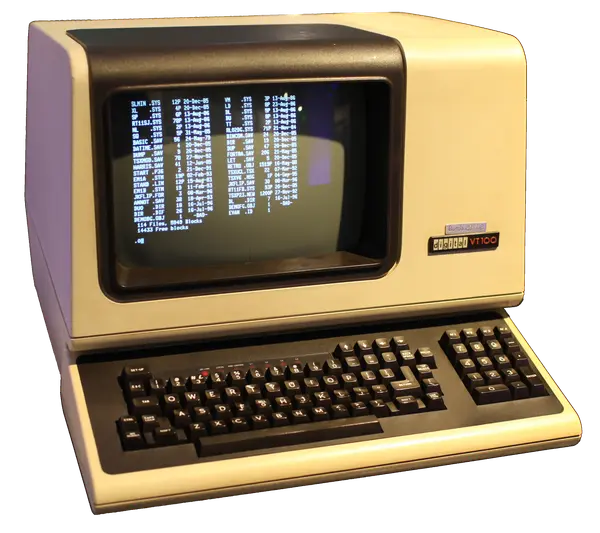

A lot of data science work happens in some kind of terminal (command prompt) environment. Usually this is UNIX-like (Linux or macOS); on Windows, people usually either use Windows Subsystem for Linux (WSL2) or PowerShell.
To make effective use of a terminal, there are a few pieces:
- Obtaining a terminal program
- Learning to use the command line
- Connecting to other machines
Terminal Programs
Terminal programs (sometimes called terminal emulators, because the original ones were software emulators of physical terminal hardware, and sometimes just terminals) are your interface to the command line. Most desktop operating systems provide some kind of terminal:
- Linux desktop environments provide terminals (Gnome Terminal on Gnome, Konsole on KDE, many others).
- macOS includes Terminal.app, the built-in terminal emulator.
- On Windows, Windows Terminal is the standard Microsoft-provided option. If it isn’t already on your computer, install it from the Microsoft store.
Many people like to use a terminal other than the default, for performance and/or features. I usually use Ghostty (available for both macOS and Linux), because it is pretty fast, integrates well with macOS, and has a simple configuration file that’s easy to control with the software I use for managing my settings across computers. iTerm2 is another popular option on macOS. There are also many terminals for iPad and similar, such as Shellfish and Termius.
Visual Studio Code provides a built-in terminal when you are using a remote connection. This is useful for simple operations, but I usually use a standalone terminal for most of my remote work, often with tmux.
Using a Terminal Environment
We’ll usually be using some kind of UNIX-like environment in the terminal. It is worth spending some time getting comfortable with the basics if UNIX terminals (even if you use Windows locally, you will often need to interact with remote Linux servers).
Most Linux systems provide bash as their default shell, and macOS uses zsh. For introductory purposes, you can treat these two shells as equivalent.
Some resources for learning Unix terminals:
Remote Connections
The standard tool for opening terminal sessions on other computers is ssh (the Secure SHell). To connect, just run ssh with the name of the remote host:
mde48@localhost$ ssh tux.cs.drexel.edu
===============================================================================

                                Welcome to Tux!
              For technical issues, please e-mail ihelp@drexel.edu
                For help with classwork, please contact your TA.

===============================================================================

Last login: Thu Dec 18 15:49:30 2025 from 173.75.223.116
Every silver lining has a cloud around it.
Uptime:  12:51:11 up 17 days, 23:59,  2 users,  load average: 0.48, 0.10, 0.03
mde48@tux5$
You are now logged in to the remote computer, and any commands you run will be run on that computer instead of your local one. If you type exit, it will exit the remote connection and return you to your local terminal prompt.
The Drexel CCI tux is actually a cluster of computers, not just one. Each time you connect to Tux, you may actually be connecting to a different computer (tux1, tux3, etc.). All nodes in the Tux cluster share storage, particularly your home directory, so your files are the same. Running processes, such as tmux sessions, are not shared between machines, so if you want to reconnect to a job you left running, you will need to connect directly to the specific Tux node you ran it on.